A static PayNow QR is the simplest way to get paid in Singapore. Generate it once, display it on your counter, and any customer can scan it with their banking app and key in the amount themselves. No card terminal, no transaction fees, money straight into your account.
"Static" just means the amount isn't baked into the code, so the same QR works for a $4 kopi or a $400 invoice. (A dynamic QR has the amount, and sometimes a reference or expiry, locked in. Handy for invoices, overkill for a counter.)
Every bank tucks this away in a slightly different place, and the personal apps work differently from the business ones. Pick your bank and app below. The steps update right underneath.
Before you start: to receive money on any PayNow QR, your mobile number, NRIC, or business UEN must be registered for PayNow with that bank. The personal apps register you in about a minute; the business flows register your UEN as part of setup.
OCBC Digital · Personal
The personal OCBC app: a static personal QR in three taps.
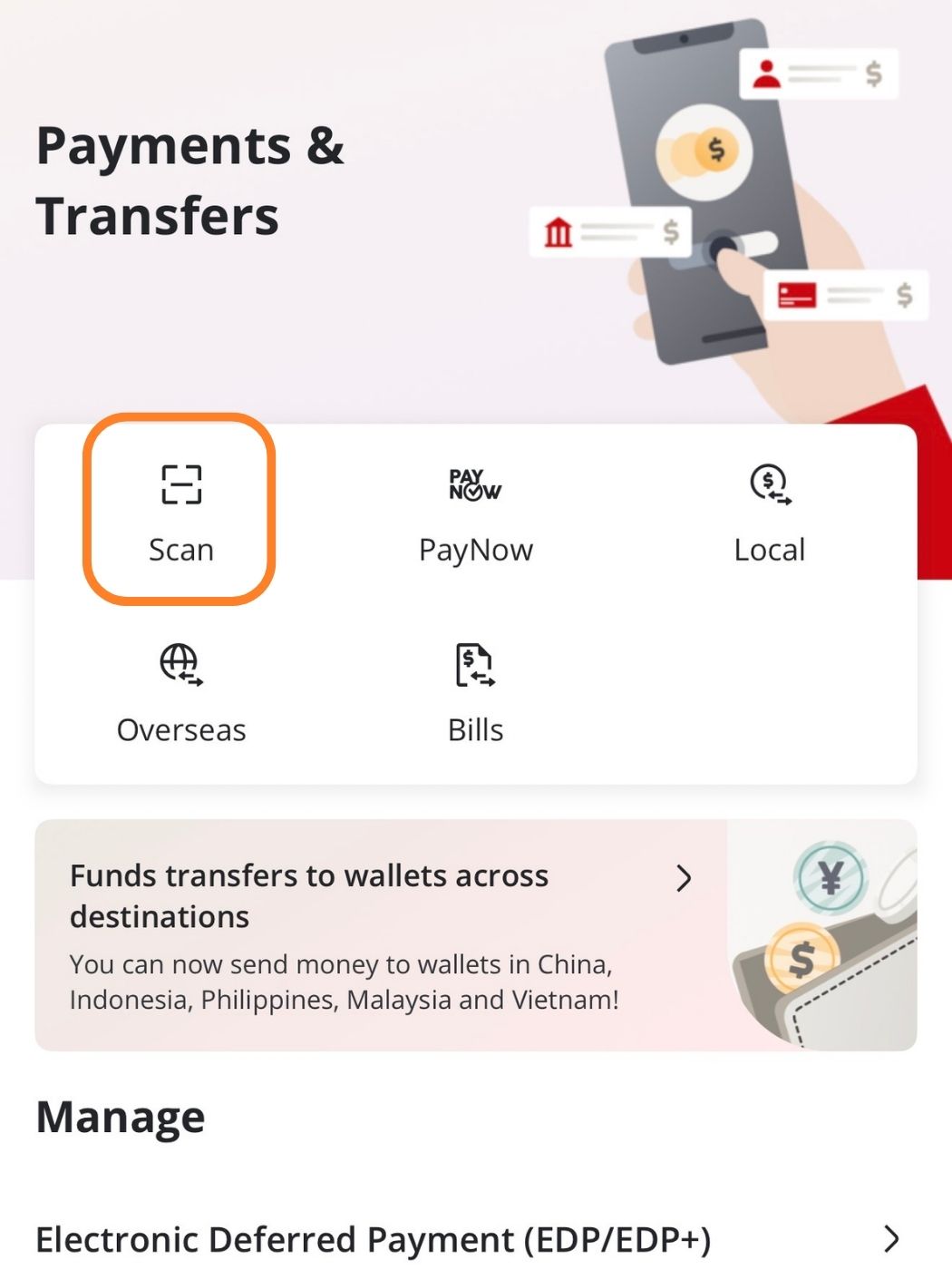
- On the home screen, open Payments & Transfers and tap Scan.
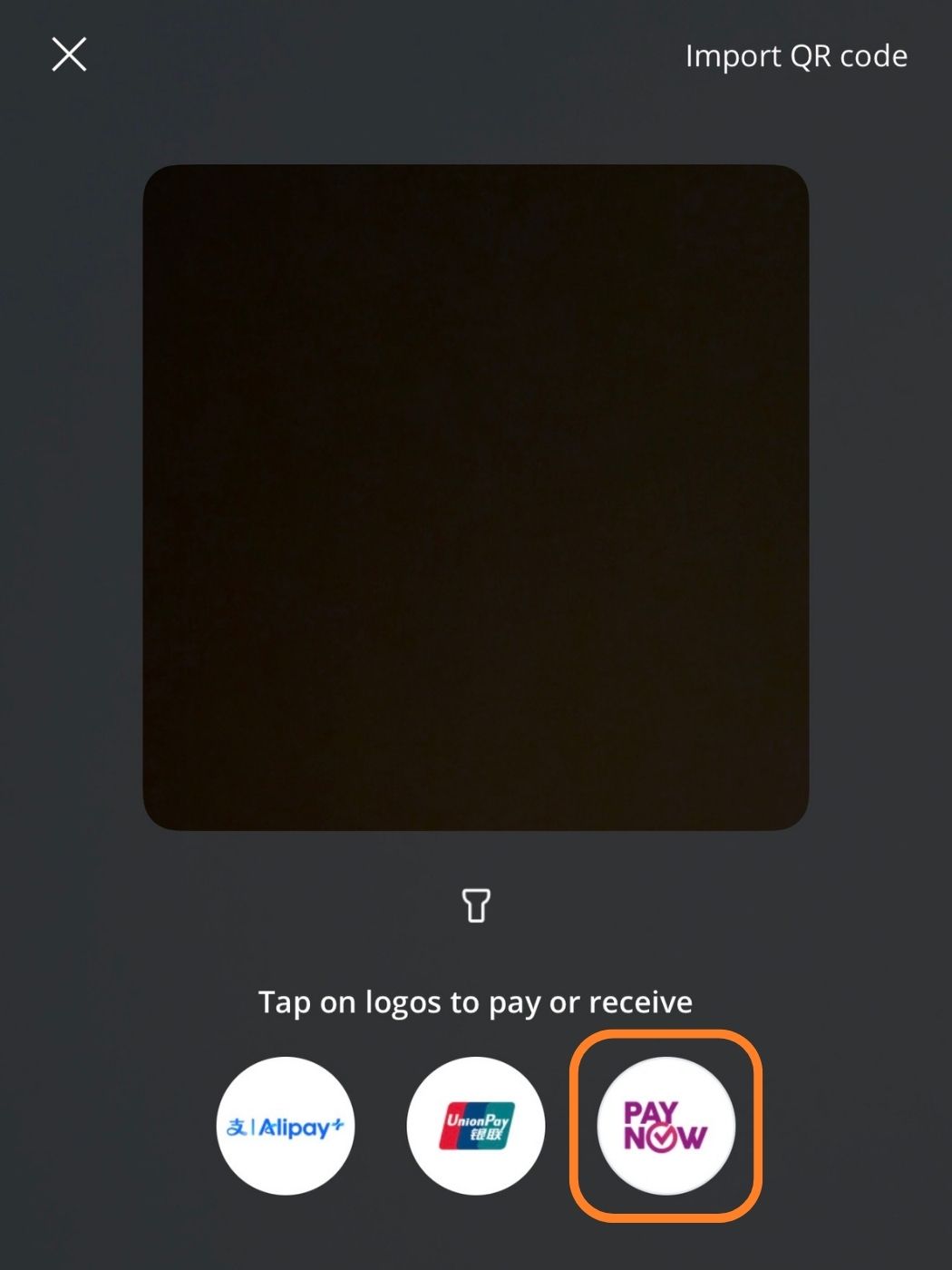
- At the bottom, under "Tap on logos to pay or receive", tap the PayNow logo.
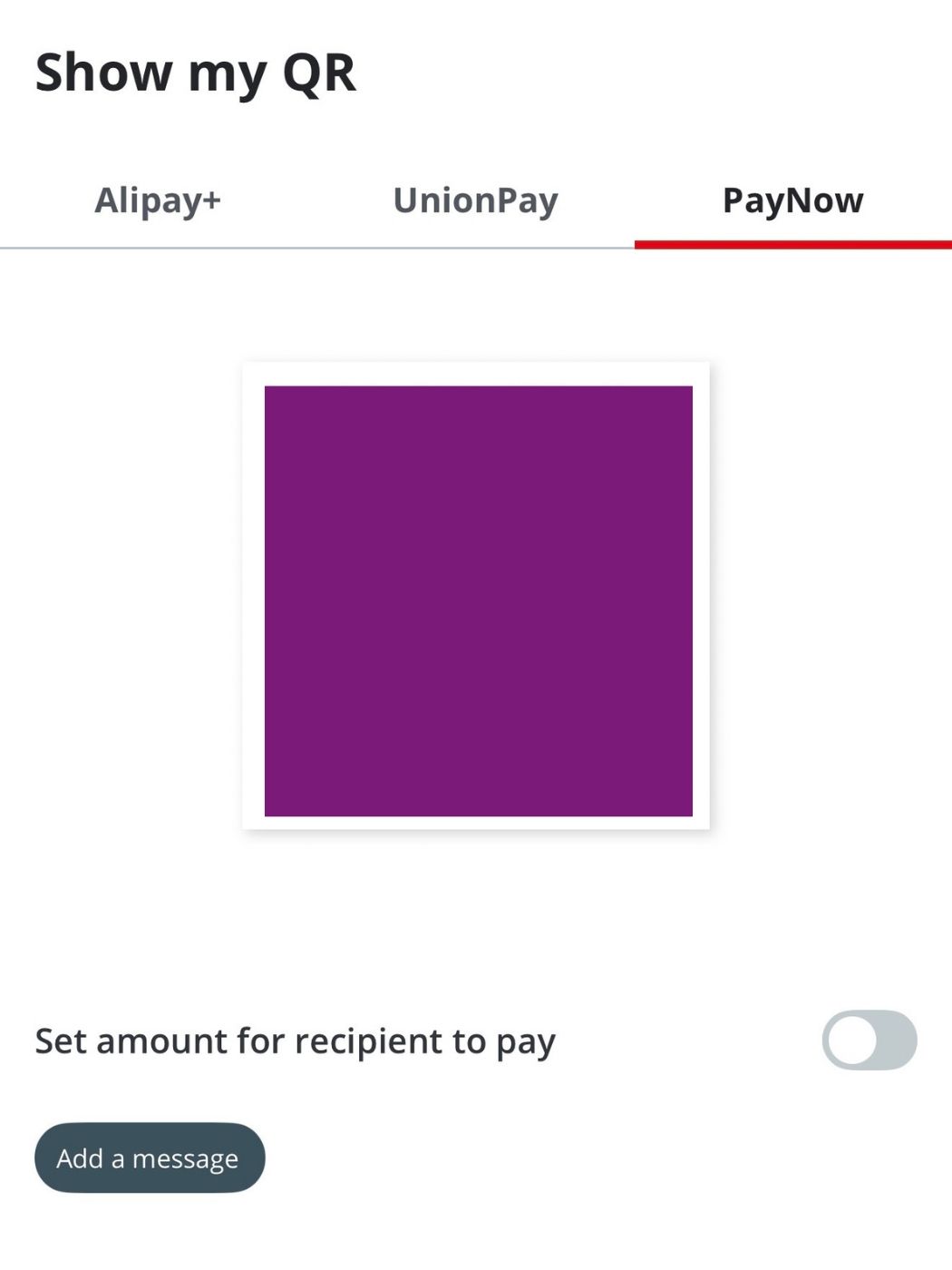
- The Show my QR screen opens on the PayNow tab. Leave Set amount for recipient to pay switched off so the same code works for any amount, then screenshot or share it to display.
OCBC OneCollect · Business
OCBC's merchant collection app. Set it up once, then display the PayNow-enabled SGQR label OCBC issues your business as your static counter code.
- Register via Velocity@ocbc (menu → Tools → Manage OneCollect) or the OCBC Business Mobile Banking App (Settings → Manage OneCollect).
- You'll get an SMS to download the OneCollect app. Log in with your mobile number and the one-time password.
- Under Manage, add your terminals and users.
- Display the printed PayNow SGQR label supplied with your registration. Customers scan it and enter their own amount.
- To charge a specific amount in person: home screen → tap the PayNow icon → key in the amount → Generate QR code → show it to the customer.
OCBC OneCollect Quick Start Guide
UOB TMRW · Personal
The personal UOB app: two taps to your personal QR.
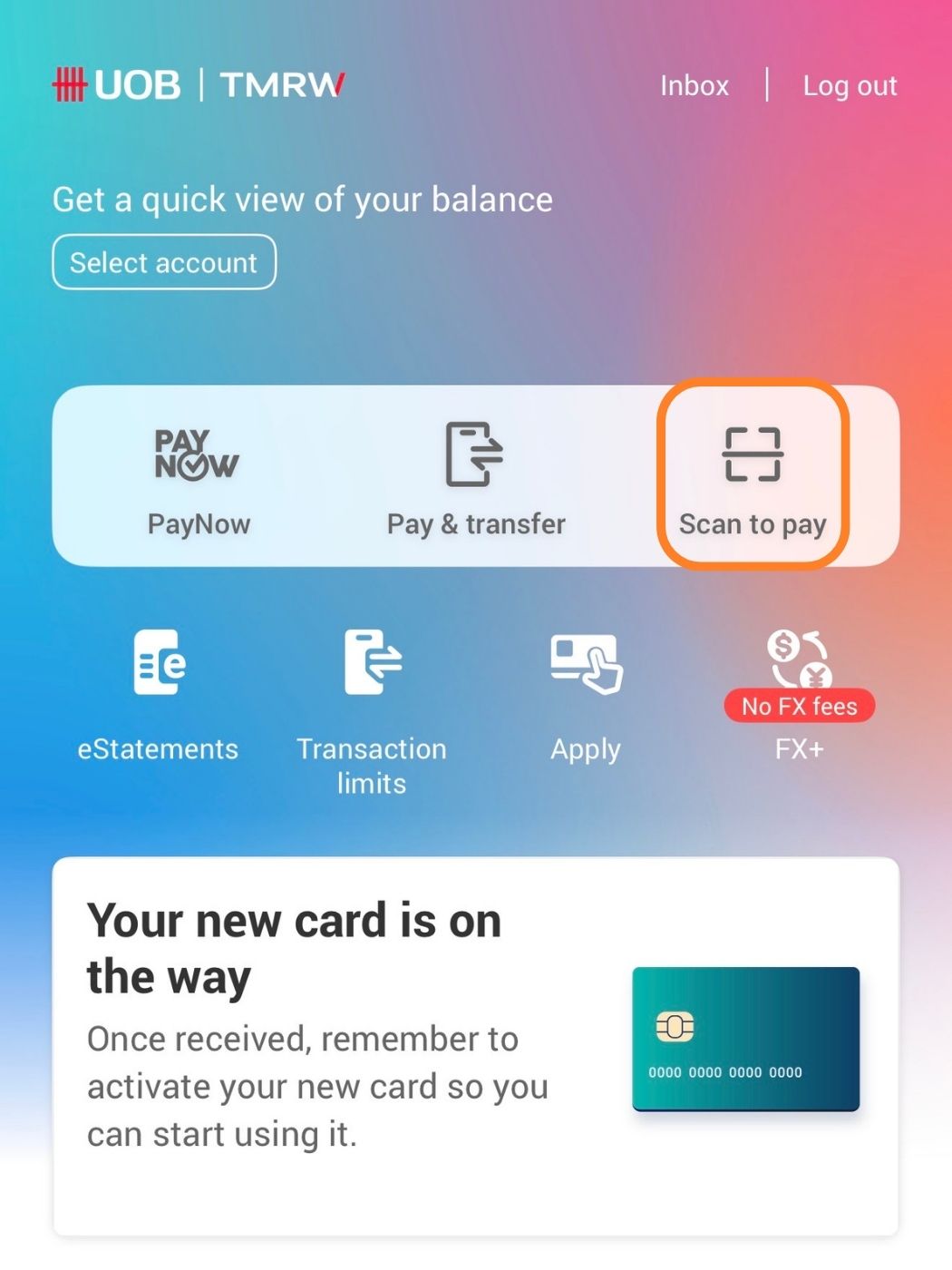
- On the home screen, tap Scan to pay.
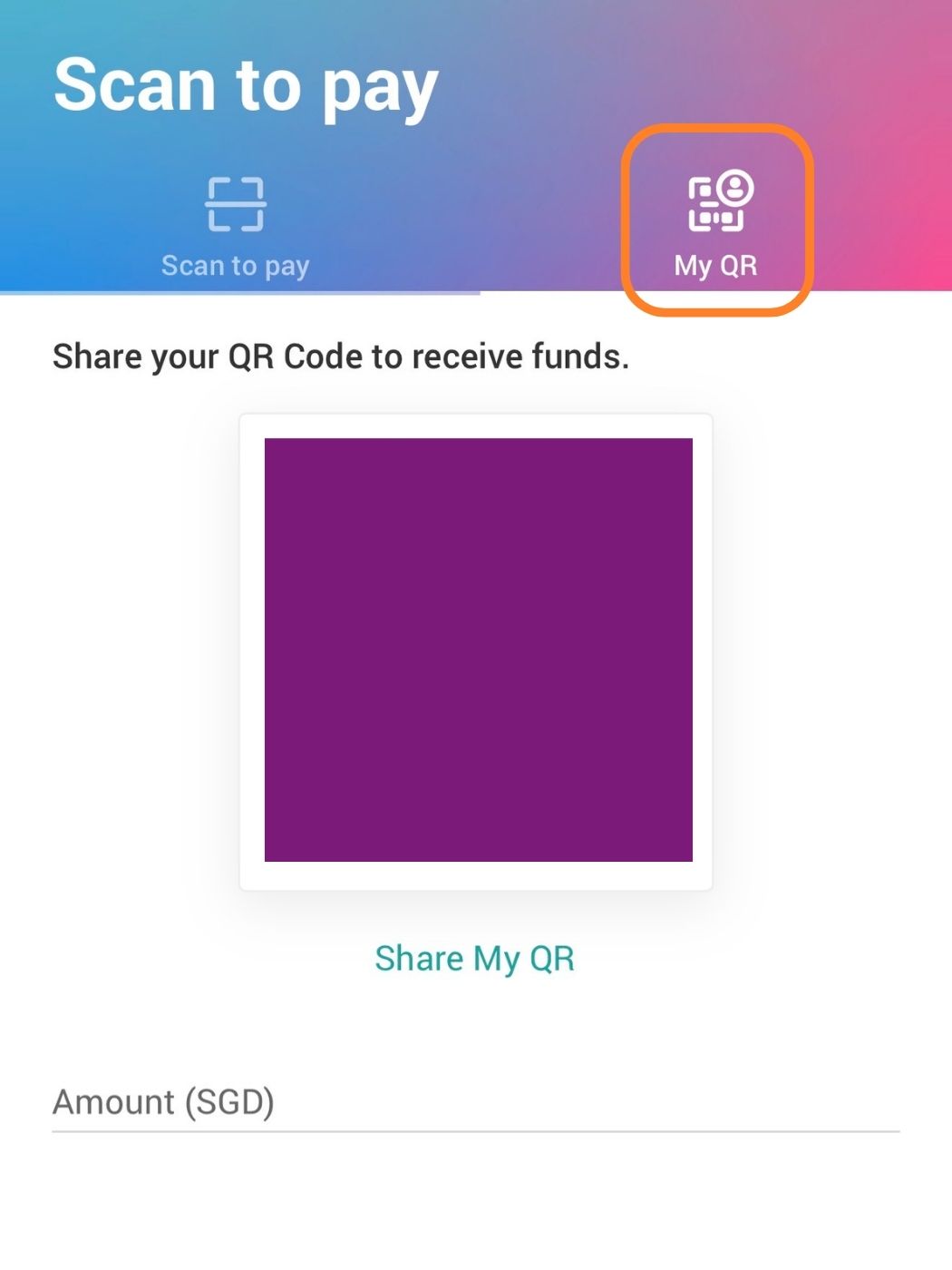
- Switch to the My QR tab (top right). Your personal PayNow QR appears. Tap Share My QR to save or send it. Leave the Amount (SGD) field blank to keep it static.
UOB Infinity · Business
UOB's business banking app: generate and download a PayNow QR you can print.
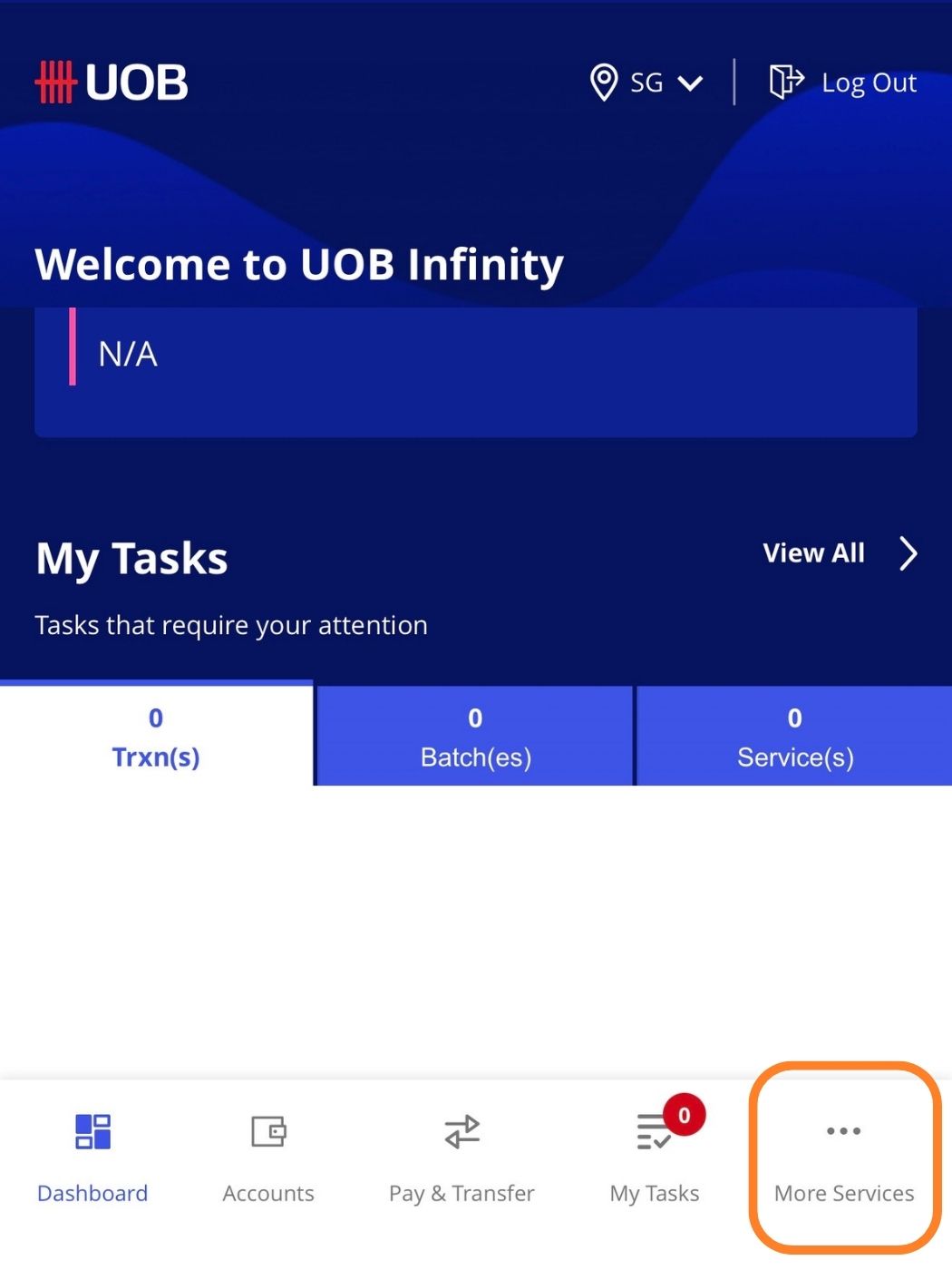
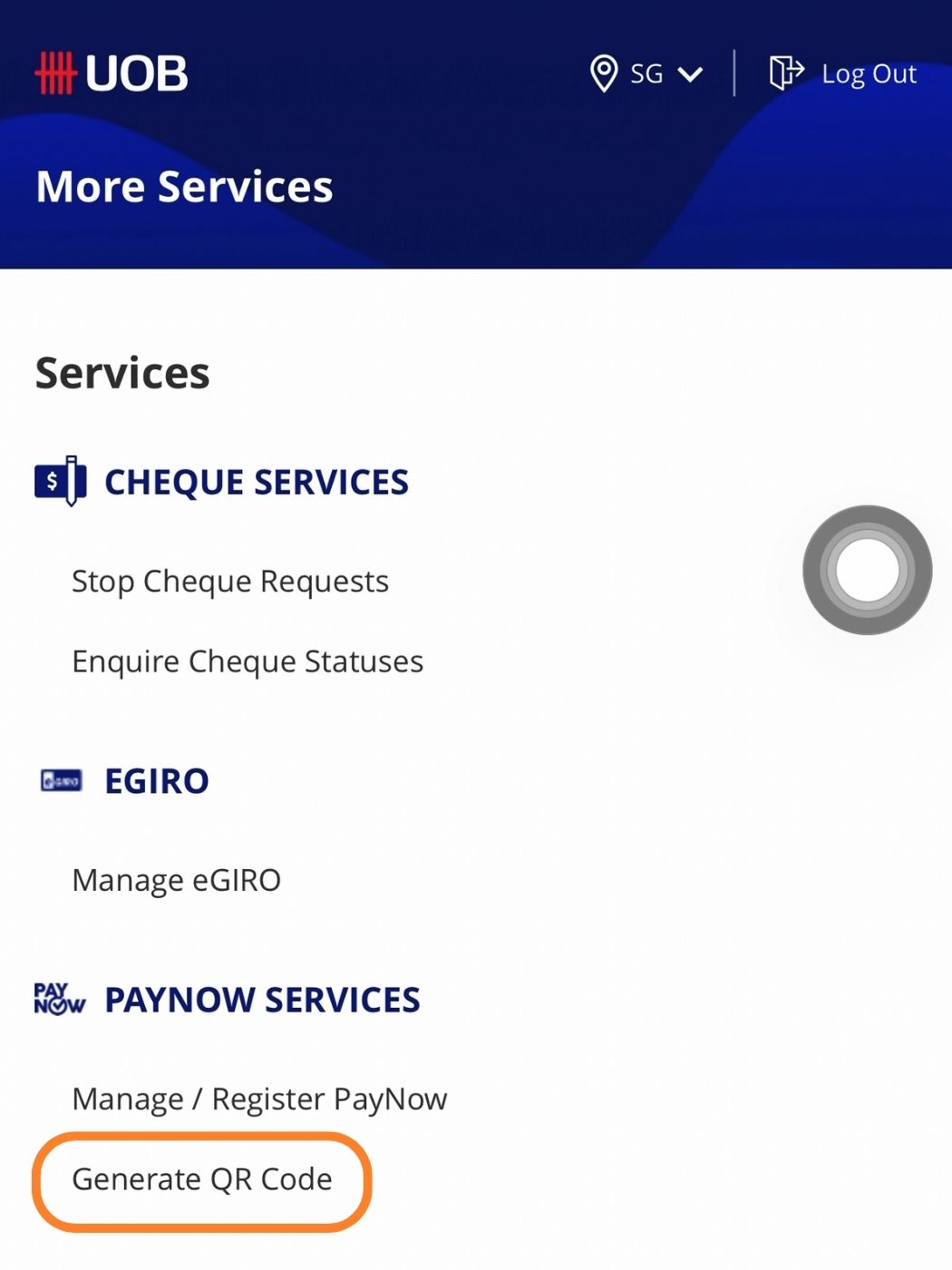
- From the dashboard, tap More Services (bottom right).
- Under PayNow Services, tap Generate QR Code.
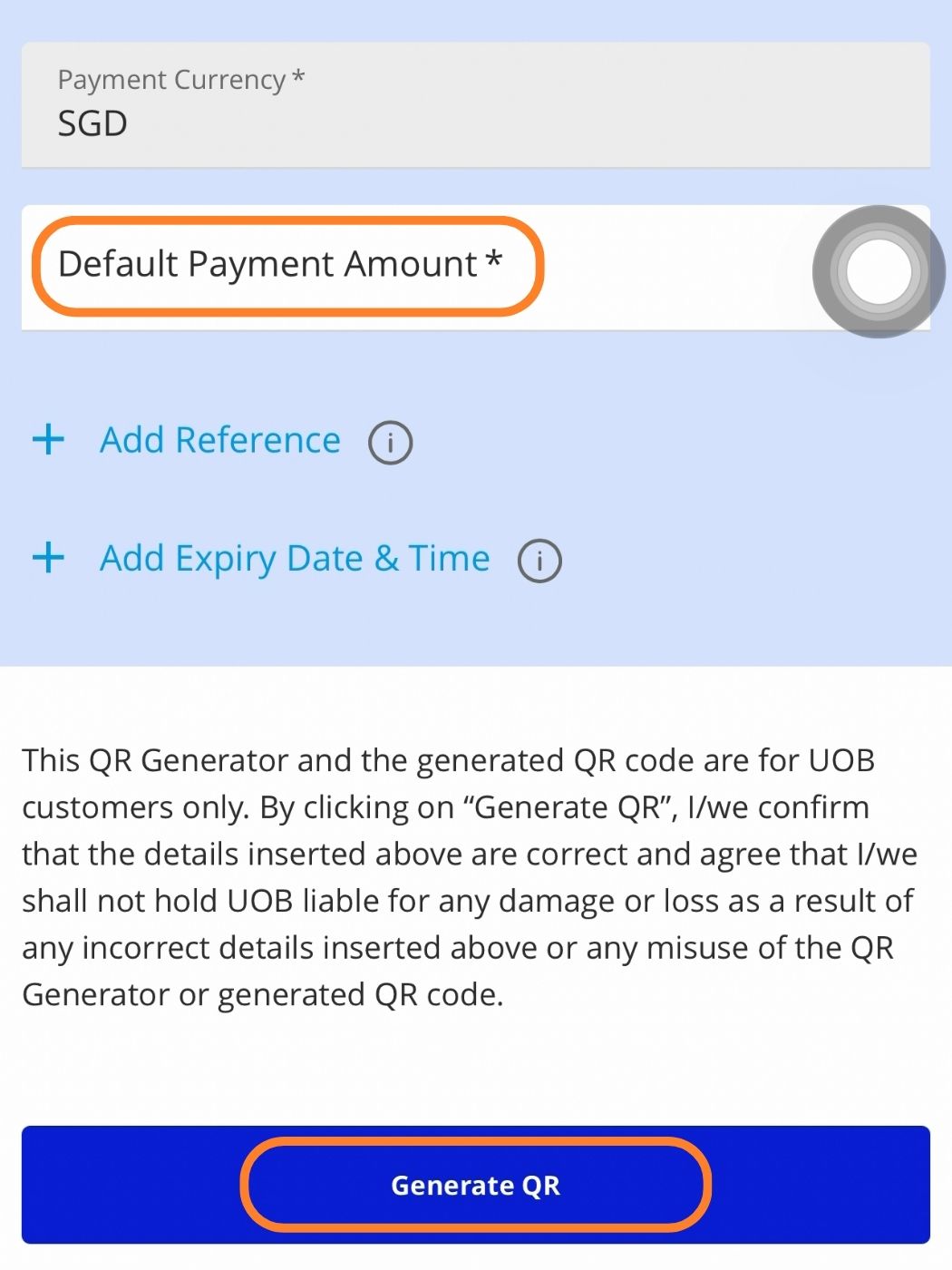
- Confirm the Payment Currency (SGD), enter a Default Payment Amount, and optionally Add Reference or Add Expiry Date & Time. Tap Generate QR.
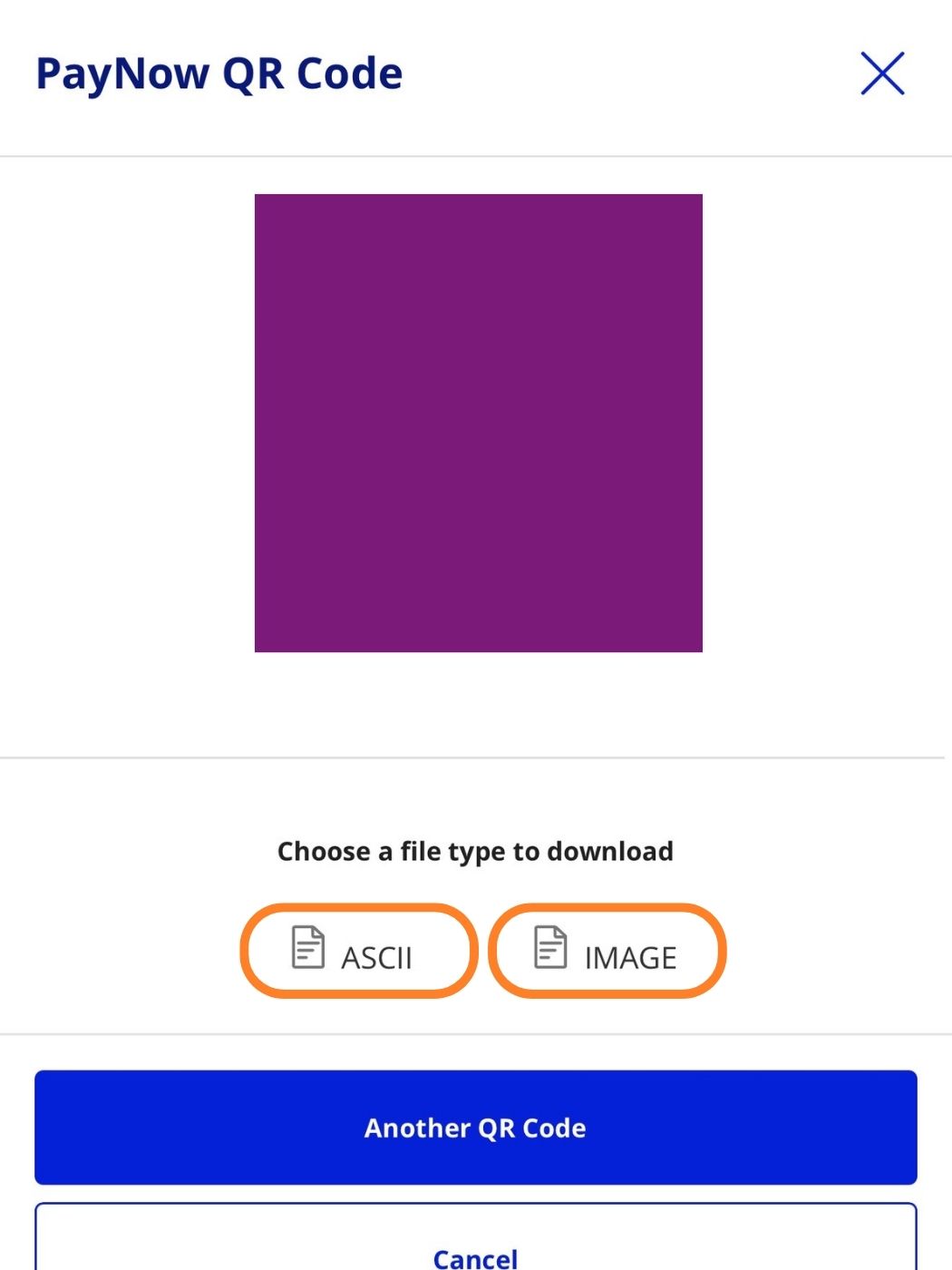
- Download the code as ASCII or Image to print or share.
DBS digibank · Personal
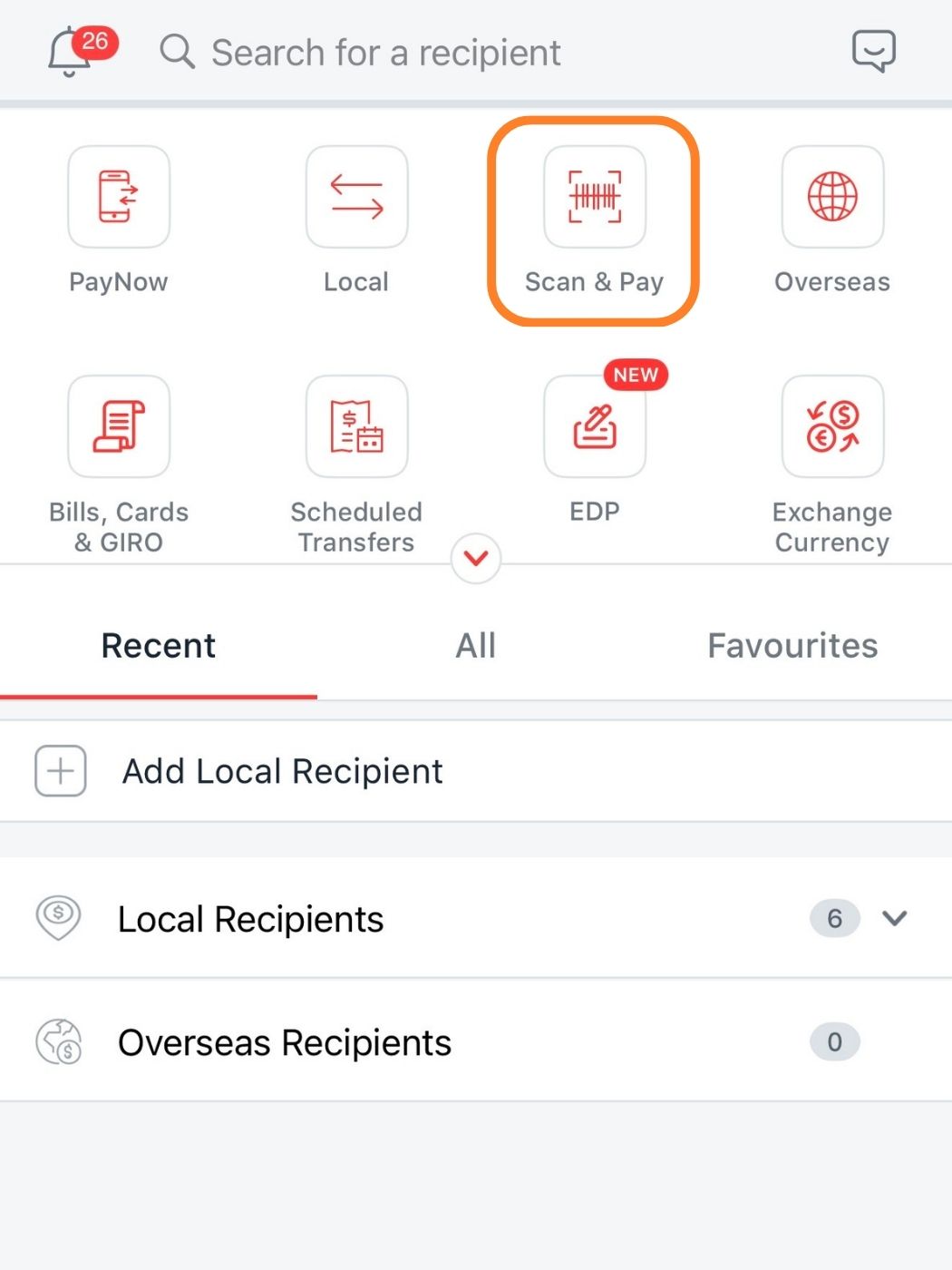
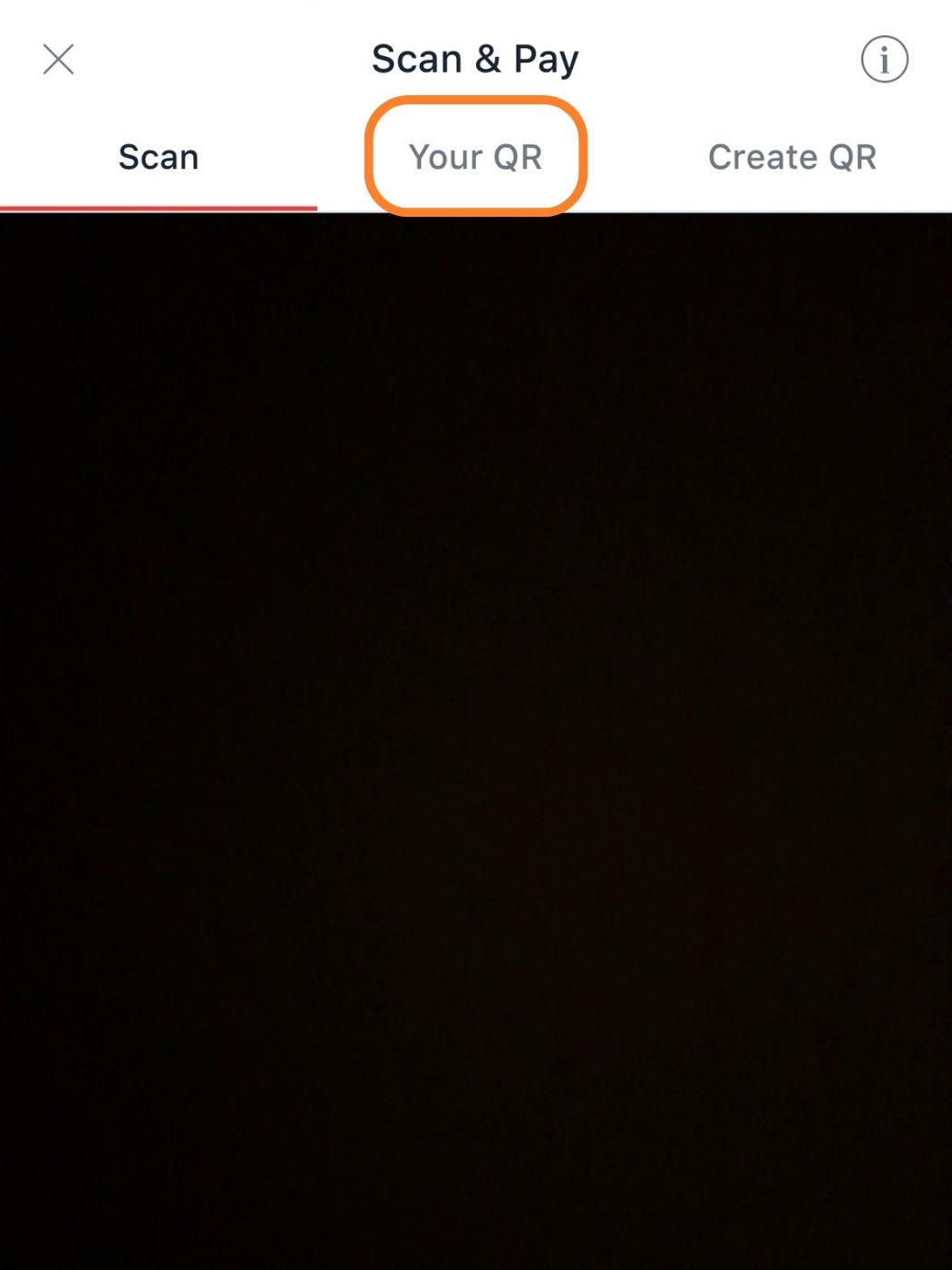
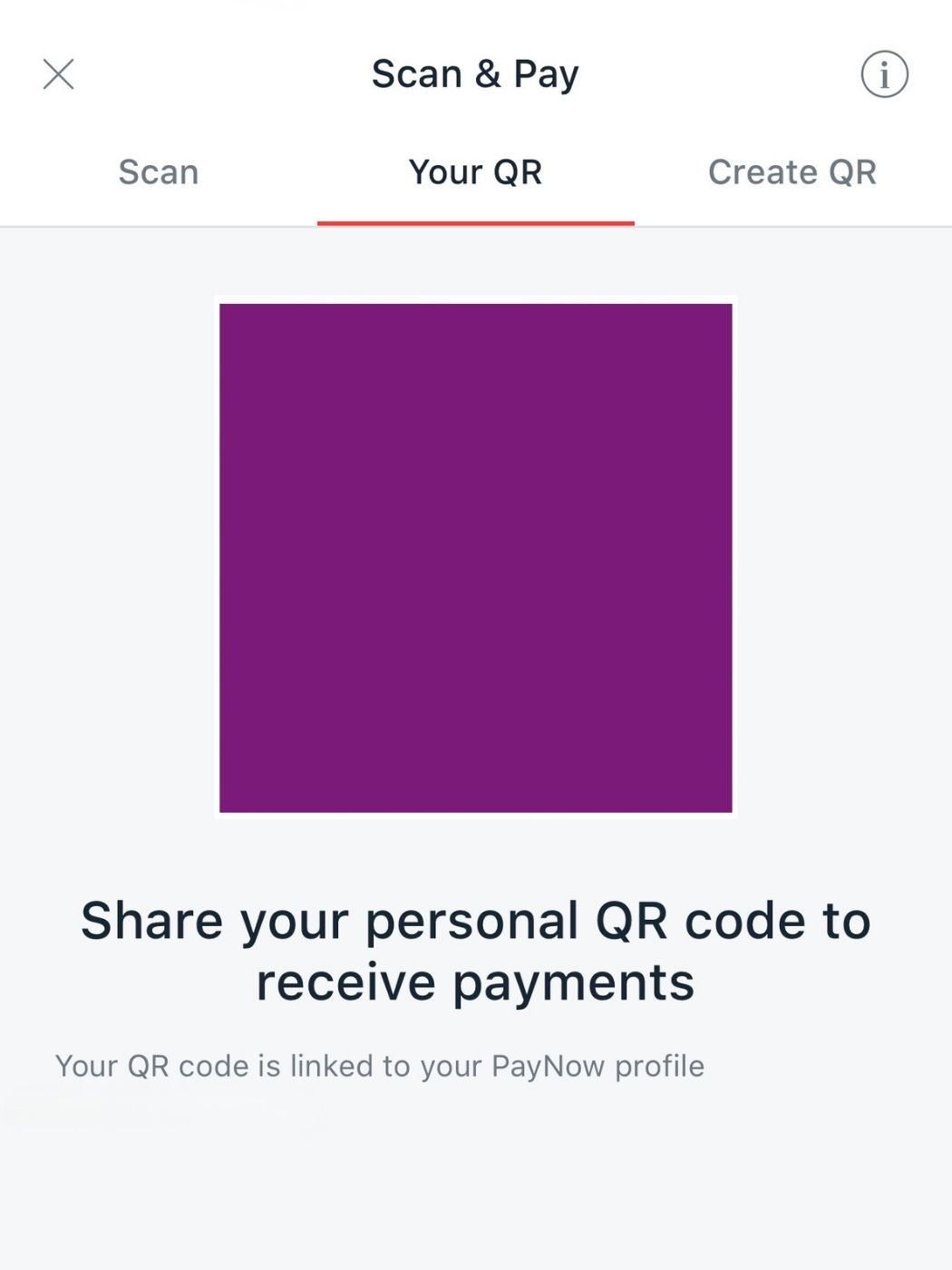
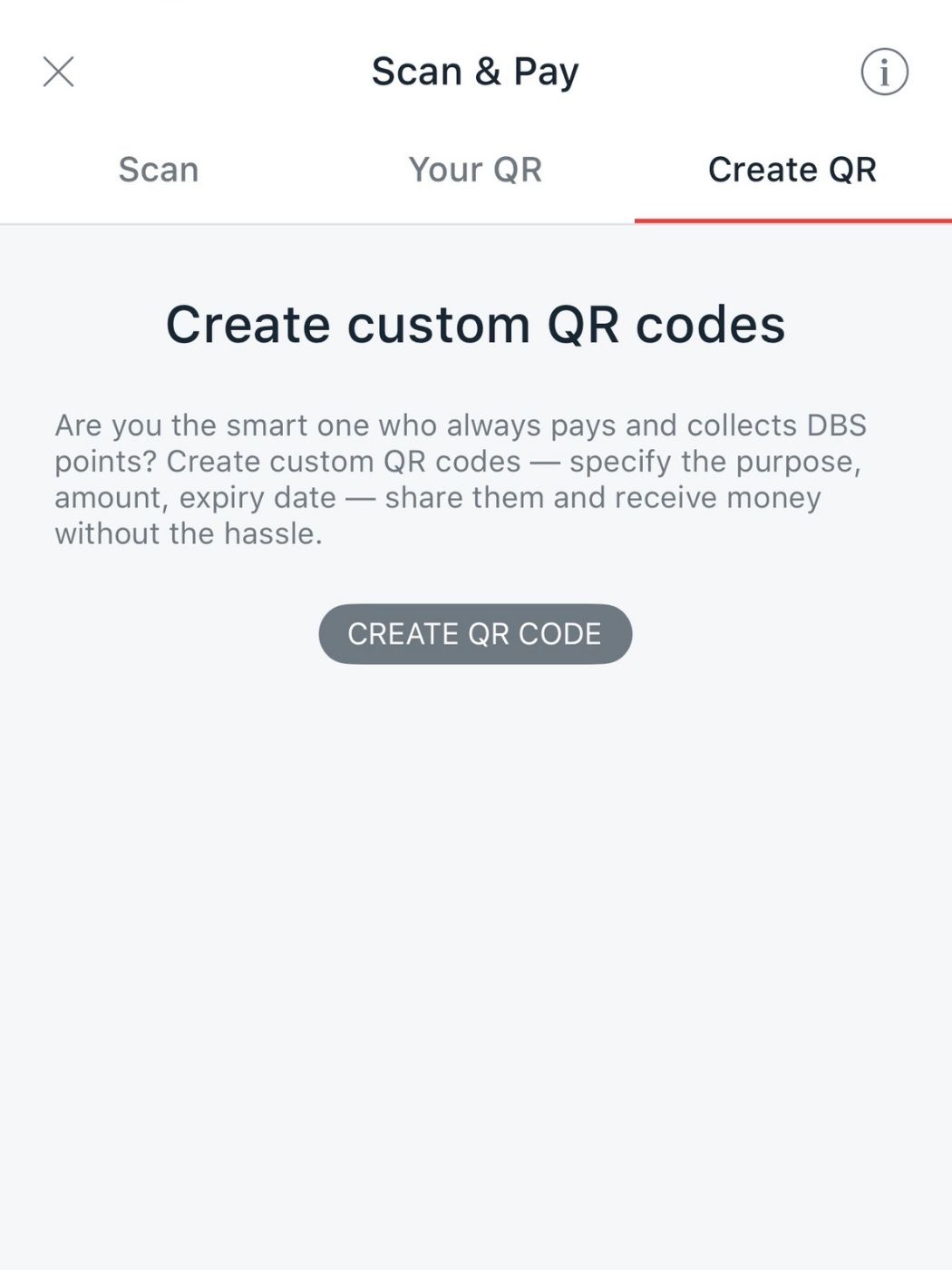
The personal DBS/POSB app. Your QR is a ready-made static code; Create QR makes a custom one.
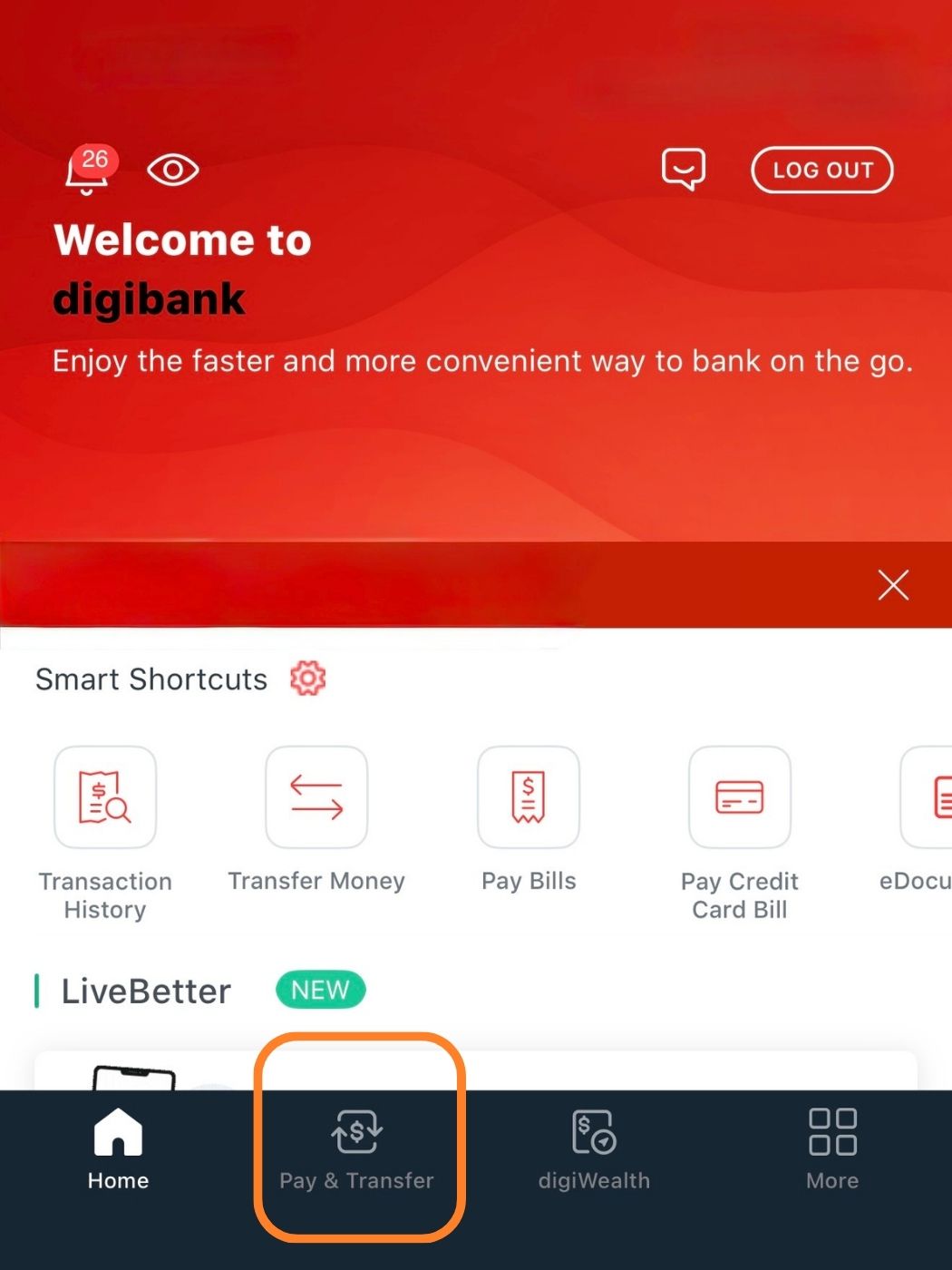
- On the home screen, tap Pay & Transfer in the bottom navigation.
- Tap Scan & Pay.
- Switch to the Your QR tab. Your personal PayNow QR appears, linked to your PayNow profile. Share or screenshot it. This is your static code.
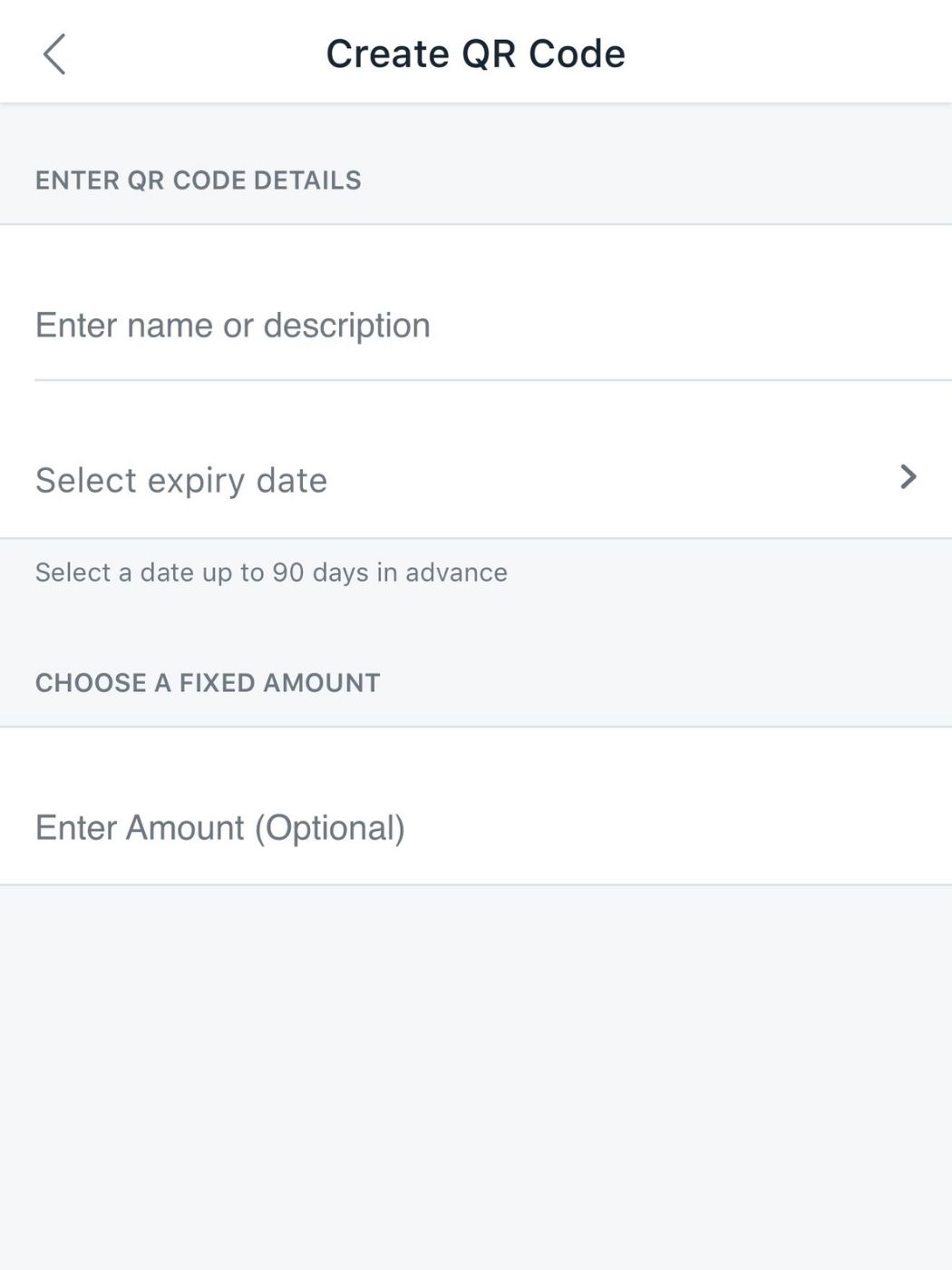
- Optional: for a custom code, open the Create QR tab → Create QR Code → add a name, an optional expiry (up to 90 days) and an optional fixed amount. Leave the amount blank to keep it static.
DBS IDEAL · Business
DBS's business platform issues a proper static SGQR (UEN-based). It's registered on IDEAL desktop and needs approver sign-off, so it isn't instant.
- Log in to DBS IDEAL on desktop → top menu Admin → Register / Manage PayNow.
- Click Link PayNow proxy to SGQR, then choose the PayNow proxy to link.
- Pick Create New SGQR and fill in the outlet address, name of label and an optional payment reference, or Link to an existing SGQR using your SGQR ID.
- Choose whether to receive printed SGQR labels by mail and the quantity, then click Submit.
- Your authorised approver approves it in IDEAL (challenge code + token). On approval you'll get an email with the SGQR PDF attached; printed labels arrive within about 14 days.
- To download it again later: Admin → Register / Manage PayNow → SGQR tab → Active → select the SGQR ID → Action → Download SGQR.
Registering & Managing SGQR on DBS IDEAL
Static vs dynamic, at a glance
| App | Account | Where to find it |
|---|---|---|
| OCBC Digital | Personal | Scan → PayNow → Show my QR |
| OCBC OneCollect | Business | Printed PayNow SGQR label + in-app generator |
| UOB TMRW | Personal | Scan to pay → My QR |
| UOB Infinity | Business | More Services → PayNow → Generate QR Code |
| DBS digibank | Personal | Pay & Transfer → Scan & Pay → Your QR |
| DBS IDEAL | Business | Desktop → Admin → Register / Manage PayNow |
Make your QR worth scanning
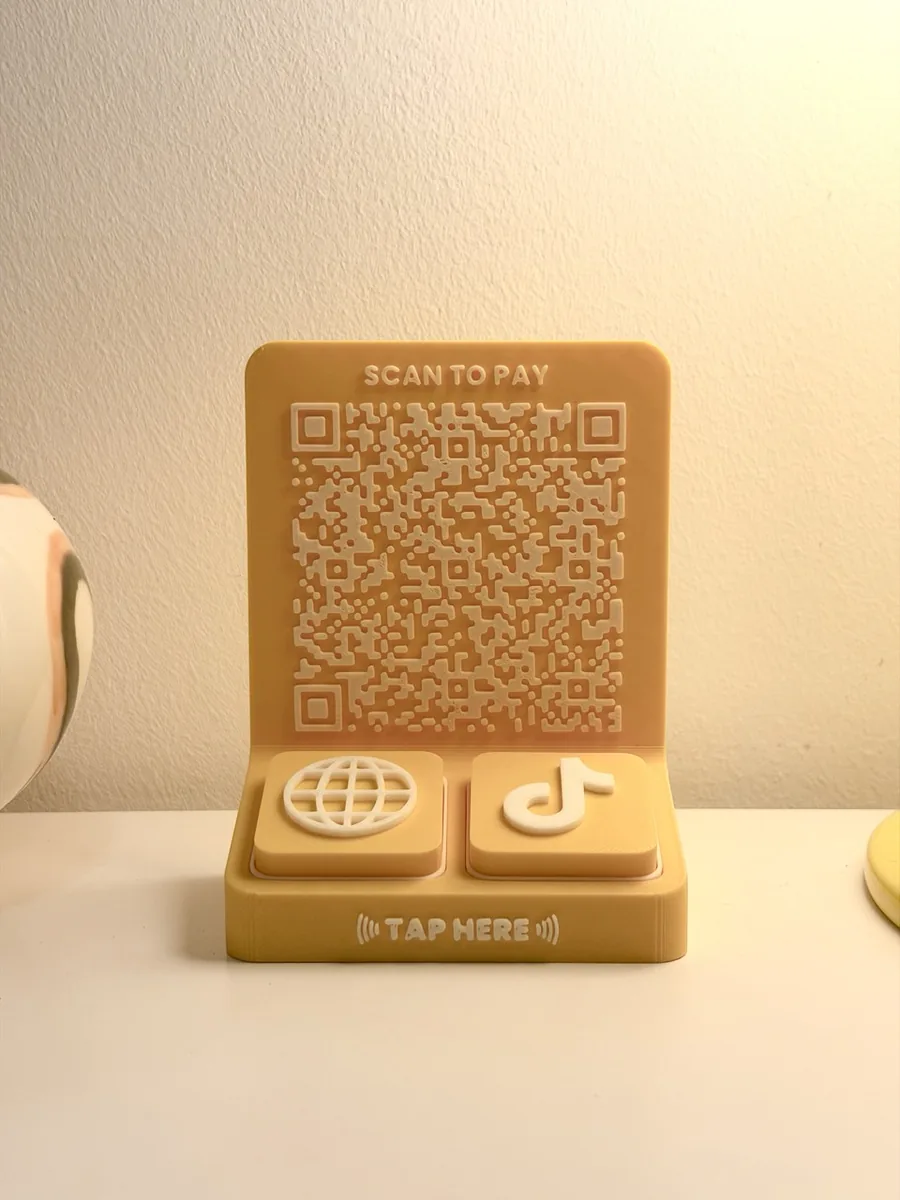
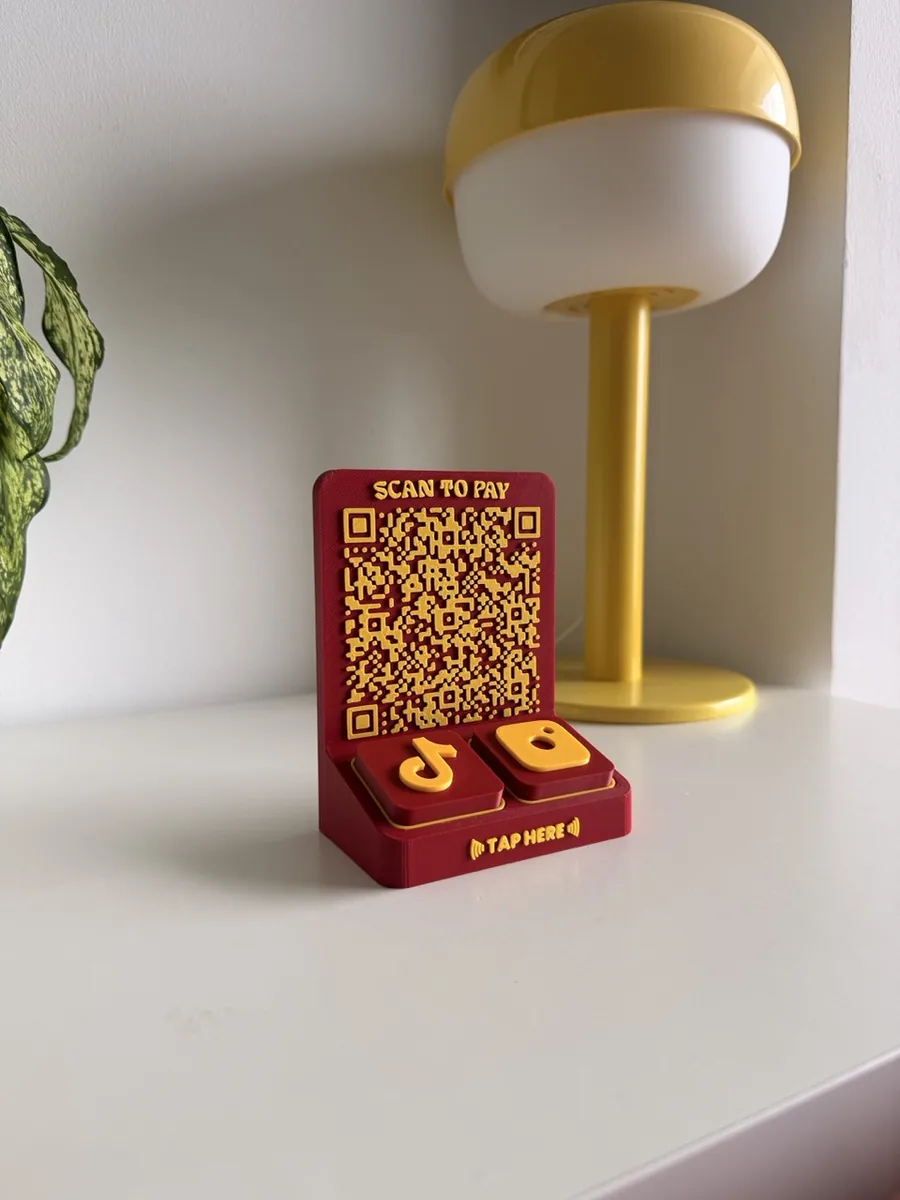
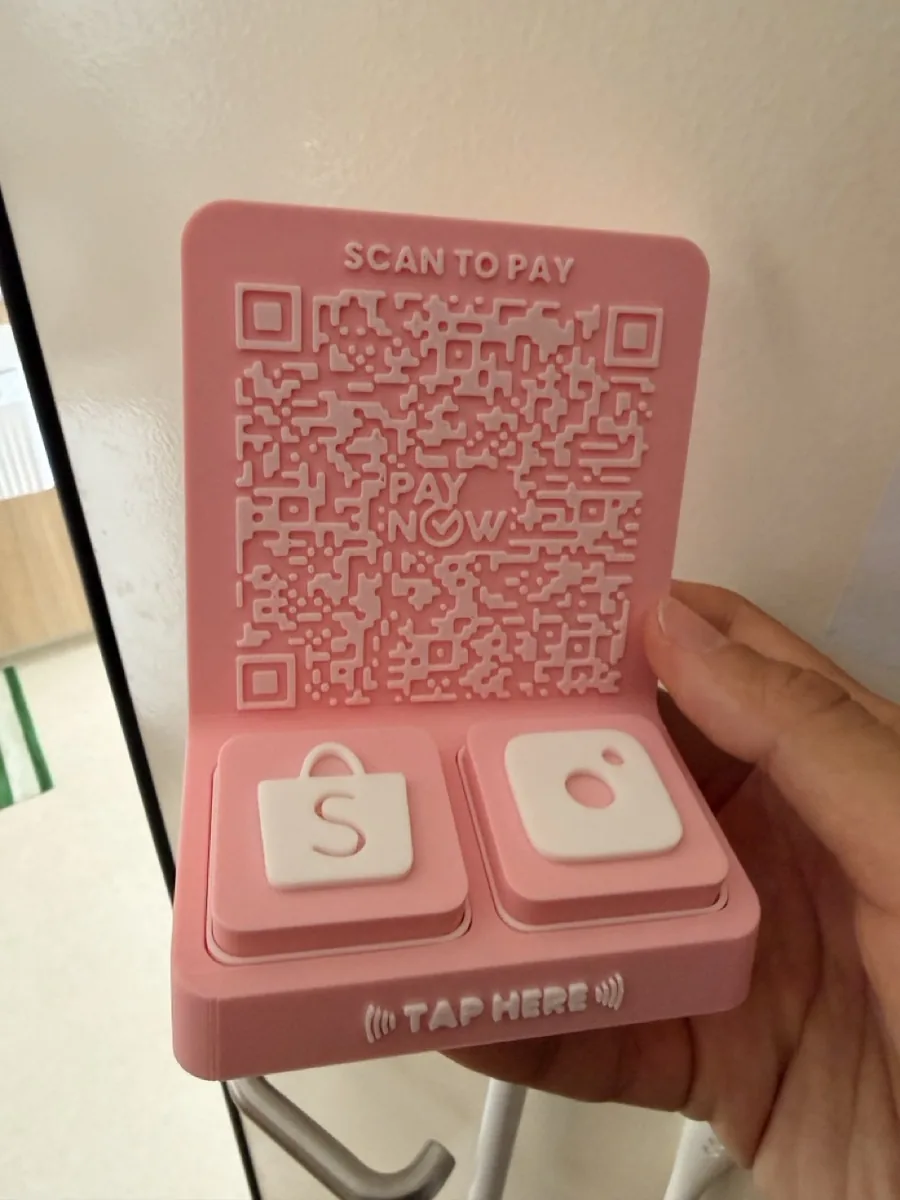
Once you've got your code, the next question is how to display it. A QR printed on a curling sticker gets ignored; the same code on a clean stand at the counter gets scanned.
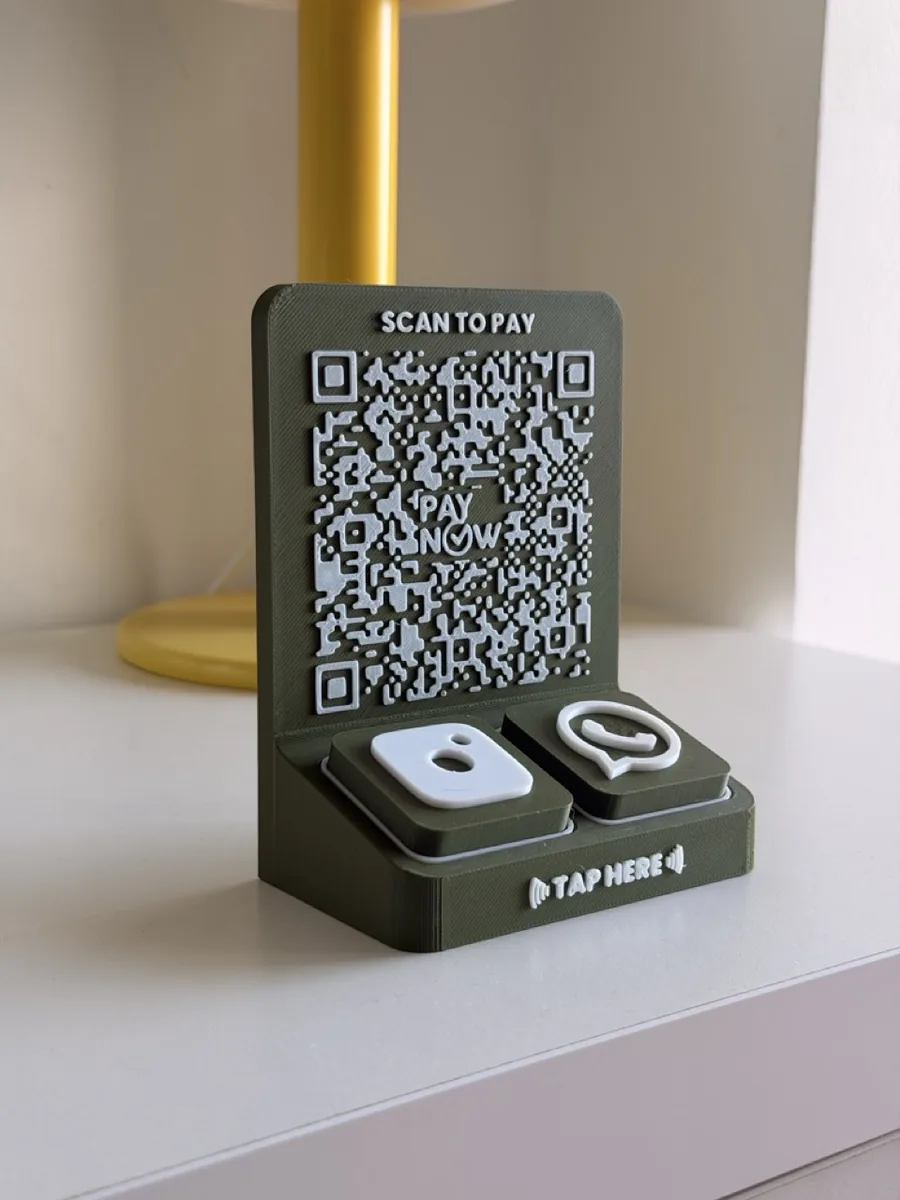
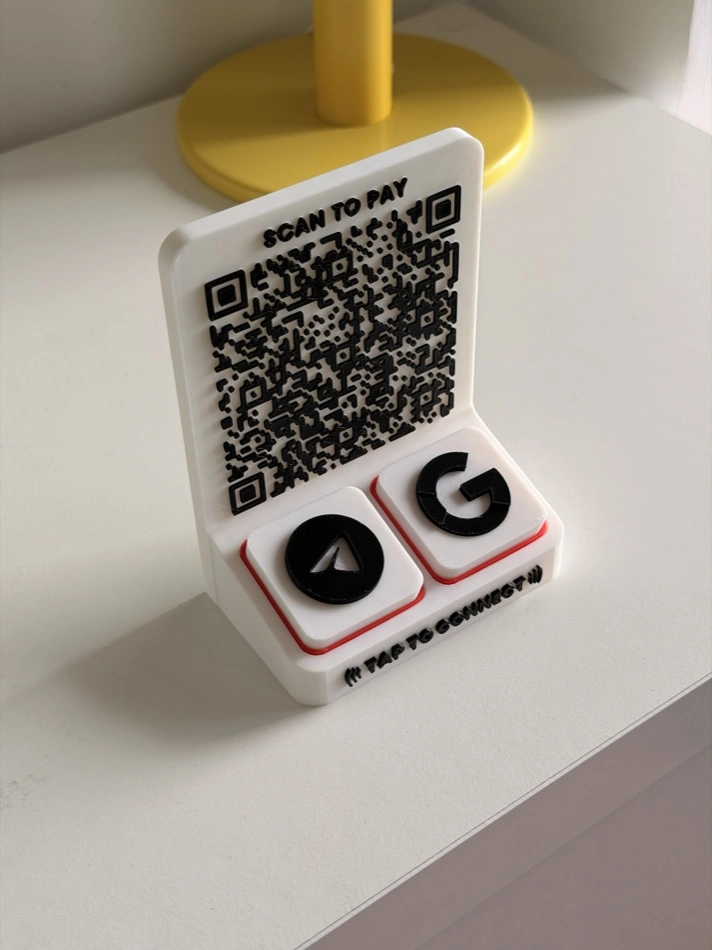
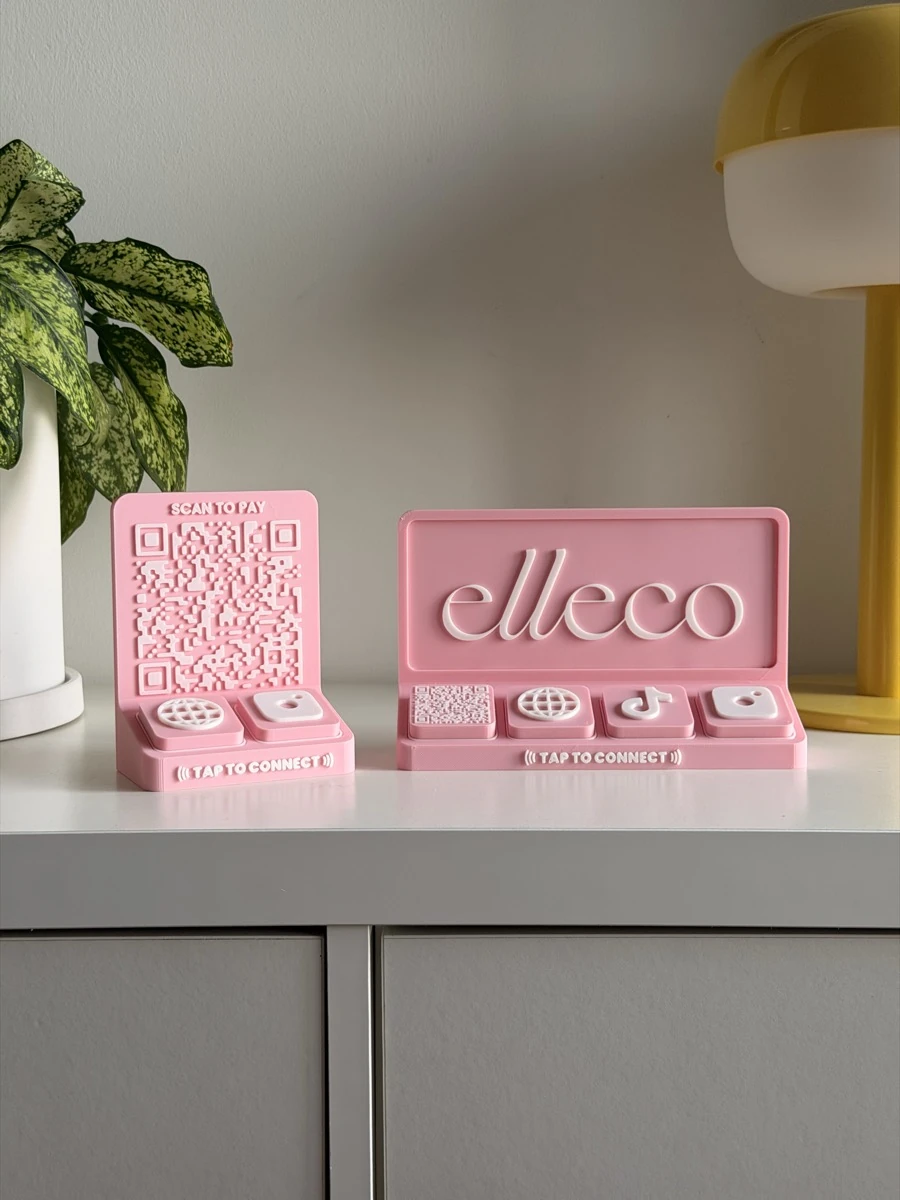
That's what we make. Tap To Connect turns your PayNow QR into a tidy counter display, and because our tiles do NFC and QR, customers can tap to pay or scan to pay, whichever they prefer. See the Tap Bar QR →
Steps reflect the banks' published guides and current app layouts as of 2026. Banks update their apps from time to time, so if a button has moved, check the bank's own help centre.